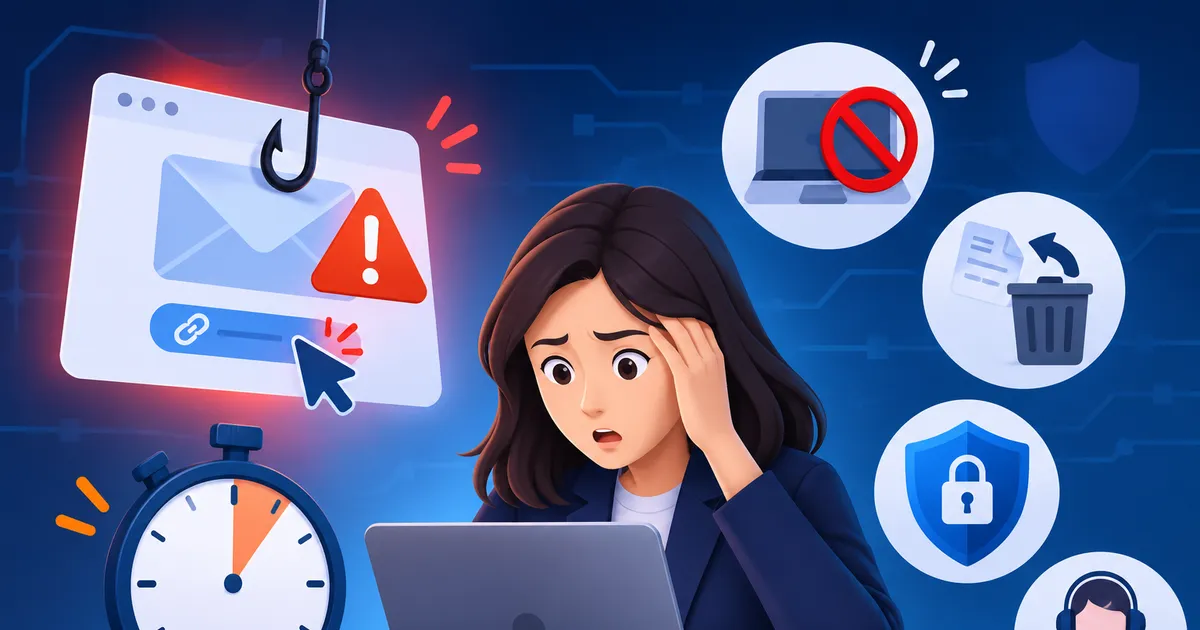
Accidentally clicking a phishing link can feel alarming, but the next few minutes are critical for limiting any damage. This guide walks you through the most effective actions you can take right after the click, without relying on vendor‑specific menus. The focus is on concepts you can apply on any device or network, whether you’re at home or in a corporate environment.
1. Stay Calm and Pause
First, give yourself a moment to breathe. Panic can lead to hasty decisions, such as entering information on a suspicious page or closing the browser abruptly, which might interrupt a safe cleanup process. Recognize that many phishing links only attempt to gather information; they often do not install malware instantly. A calm approach lets you follow the next steps methodically.
2. Isolate the Device
Limiting the device’s connection to the wider network reduces the chance that any hidden payload can communicate with an attacker. Here’s what to look for:
- Disconnect from Wi‑Fi or Ethernet. Turning off wireless or unplugging the network cable creates a physical barrier.
- Disable Bluetooth and other radios. Some malicious tools use nearby devices to spread.
- Avoid restarting the computer. A reboot can sometimes trigger hidden scripts that were loaded in memory.
If you are on a managed corporate device, follow any internal policy about network isolation; otherwise, a simple manual disconnection works for personal devices.
3. Assess What Happened
Understanding the nature of the link helps you decide which follow‑up actions are most important. Ask yourself these questions:
- Did the link open a web page, a file download, or an application?
- Did you enter any credentials, personal data, or payment information?
- Did any pop‑ups appear asking for additional permissions?
If you only viewed a page and did not provide any data, the risk is generally lower. If you entered credentials, you will need to act quickly to protect those accounts.
4. Run a Safe Scan
Most modern operating systems include built‑in tools that can check for known malicious files without needing to navigate deep menus. Look for options such as “quick scan,” “full scan,” or “malware detection” within your security suite. If you do not have security software installed, you can use reputable free scanners that run without installation. The goal is to let the tool examine the system while it remains offline from the internet.
Do not click any links or buttons that appear in the suspicious page during this scan; keep the focus on the security tool’s own interface.
5. Secure Your Accounts
If you entered a username, password, or any other sensitive data, treat those credentials as compromised. Take the following actions as soon as you regain network access:
- Change passwords. Use a device you know is clean, and choose a strong, unique password for each account.
- Enable two‑factor authentication (2FA). Even if you have not covered this topic elsewhere, adding a second verification step greatly reduces the chance an attacker can reuse stolen passwords.
- Review recent activity. Look for logins from unfamiliar locations or devices and report any suspicious entries.
For corporate accounts, follow your organization’s password‑reset procedure, which may include contacting the IT help desk.
6. Report the Incident
Sharing what happened helps protect others and can trigger additional safeguards from your service providers. Consider these reporting paths:
- Internal IT or security team. If you are using a work device, notify them immediately so they can investigate network‑wide implications.
- Service providers. Many email or cloud services have built‑in mechanisms to flag phishing attempts.
- Relevant authorities. In some regions, you can forward suspicious emails to a government‑run phishing reporting address.
When you report, include the original link (if safe to share), the time of the click, and any actions you took afterward. This information speeds up analysis and response.
7. Review and Strengthen Defenses
After the immediate threat is contained, take a moment to improve your long‑term security posture. This is not a one‑time checklist but an ongoing habit:
- Update software. Ensure your operating system, browsers, and plugins have the latest patches.
- Educate yourself. Familiarize yourself with common phishing cues—misspelled domains, urgent language, unexpected attachments.
- Consider a password manager. It can generate and store strong passwords, reducing the temptation to reuse them.
- Back up important data. Regular backups make recovery easier if malware ever does manage to encrypt files.
These steps help turn a frightening moment into a learning opportunity that lowers future risk.
Quick checklist
- Stay calm; avoid entering more information.
- Disconnect from Wi‑Fi/Ethernet and disable Bluetooth.
- Identify what the link did (page, download, credential entry).
- Run a quick scan with your security software while offline.
- When back online, change any passwords you may have entered.
- Enable two‑factor authentication on affected accounts.
- Report the incident to IT, service providers, or relevant authorities.
- Update software and consider additional protective tools.
Key takeaway
The first five minutes after clicking a phishing link are about containment, assessment, and communication. By isolating your device, scanning for hidden threats, securing compromised credentials, and notifying the appropriate parties, you dramatically reduce the chance of lasting damage. Treat each incident as a prompt to reinforce good security habits, and you’ll be better prepared for the next unexpected click.